Create once, save and update: how simpleappscreens.com makes App Store screenshots manageable
· GNK Softworks
Making a set of store screenshots once is fine. The trouble starts the second time: your app gets a redesign, a headline needs rewording, or a store adds a new device size, and suddenly you are rebuilding a dozen images by hand. Simple App Screens is built around the idea that a screenshot set is a project you keep, not a pile of PNGs you remake.
One design, every size
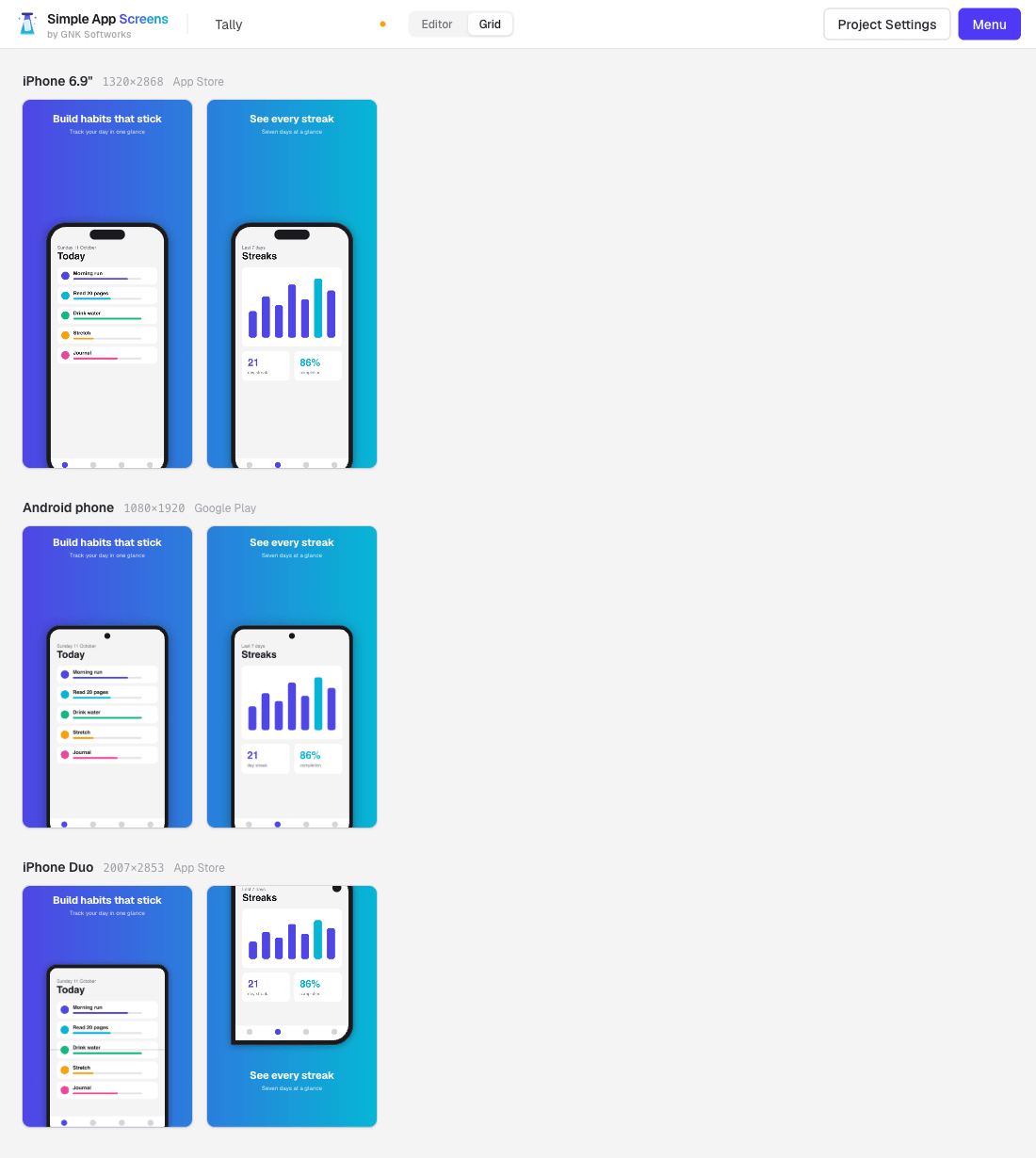
A project is a list of screens. Each screen has a headline, an optional subheadline, a layout, and one app screenshot per output format. The headline, layout, fonts and background are shared, so when you enable another format the whole set already exists in that size. Eight formats are available: iPhone 6.9", iPhone 6.3", iPhone 6.1", iPhone 6.5", iPhone Duo, iPad 13", Android phone and Android 10" tablet.
Save the project as a single file
Menu → Save writes a .sasb file to your computer. It is an ordinary ZIP containing the project settings as JSON and the original images you uploaded. Nothing is stored on a server, because there is no server: the file is the project.
- Keep it next to your app's source code, or in version control.
- Send it to a colleague and they can open it as is.
- Your uploads are stored as originals, so nothing degrades between saves.
Updating takes minutes
When something changes, you change that one thing:
- Open Simple App Screens and choose Load project.
- Swap the screenshots that changed, or edit a headline. Text is shared, so one edit updates every format.
- Check the result in the Grid view.
- Menu → Export → Download all (ZIP), then save the project again.
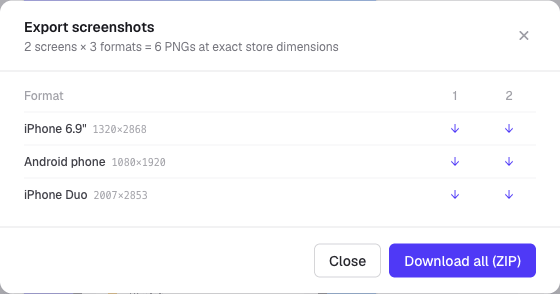
The ZIP contains one folder per format, such as iphone-6.9/ and android-phone/, with files numbered in order. Every PNG is exported at the exact pixel size the store expects.
A new device size is a tick box
Stores add sizes. When that happens you open your project, tick the new format under Output formats, upload a screenshot for it on each screen, and export. Your text, background and layouts are already there. If one layout does not suit the new shape, set Apply to to that device only and pick a different one for just that format.
The iPhone Duo is the current example. See our iPhone Duo guide for how adding it to an existing project works.
A safety net while you work
Unsaved work is backed up automatically in your browser as you go. If you close the tab or the browser crashes, the welcome screen offers Restore last session. A small dot next to the project name shows when there are changes you have not saved to a file yet.