iPhone Duo App Store Screenshots: a guide on making screenshots for Apple's new device
· GNK Softworks
iPhone Duo is Apple's first folding iPhone, and it brings a new screenshot size to the App Store. This guide covers what the device looks like from a screenshot point of view, the sizes Apple accepts, and how to build a Duo set in Simple App Screens from start to export. The example project is a made-up habit tracker called Tally.
Two displays, two shapes
The Duo folds like a book. Closed, you use a 5.4-inch outer display. Open, you get a 7.6-inch inner display that is much closer to square than any other iPhone. Your app runs on both, so it is worth deciding early which one your store screenshots should show.
| Display | Native resolution | Accepted screenshot sizes |
|---|---|---|
| Outer (closed) | 1398 × 2034 | 1398 × 2034 or 2034 × 1398 |
| Inner (open) | 1878 × 2670 | 2007 × 2853 or 2853 × 2007 |
The sizes come from Apple's screenshot specifications. Note that the inner-display screenshot size (2007 × 2853) is larger than the panel itself (1878 × 2670). The shape is the same, so a capture from the device or simulator scales up cleanly.
Step 1: turn on the iPhone Duo format
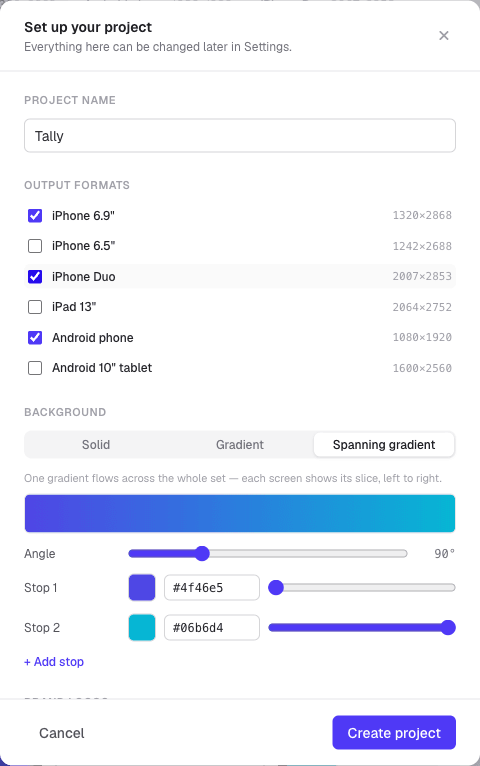
Start a new project, or open an existing one and go to Project Settings. Under Output formats, tick iPhone Duo. It sits alongside the formats you already use, so the Duo becomes one more output of the same design rather than a separate project.
Step 2: capture and upload your app screens
Each screen in the project takes one app screenshot per format. Open the Content tab and the upload slot for iPhone Duo tells you the size it expects: 1878 × 2670 for the inner display.
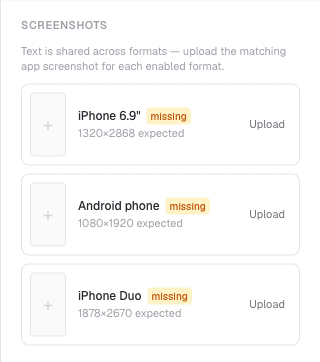
- For the inner frame, capture your app on the open Duo (or the simulator) at 1878 × 2670.
- For the outer frame, capture it on the closed Duo at 1398 × 2034. Pick the Outer frame first (step 3) and the slot updates to ask for that size.
Headlines and subheadlines are shared across every format, so you only write them once.
Step 3: choose the Inner or Outer frame
Select the iPhone Duo tab above the canvas, then open the Layout tab. A Device frame control appears with two options.
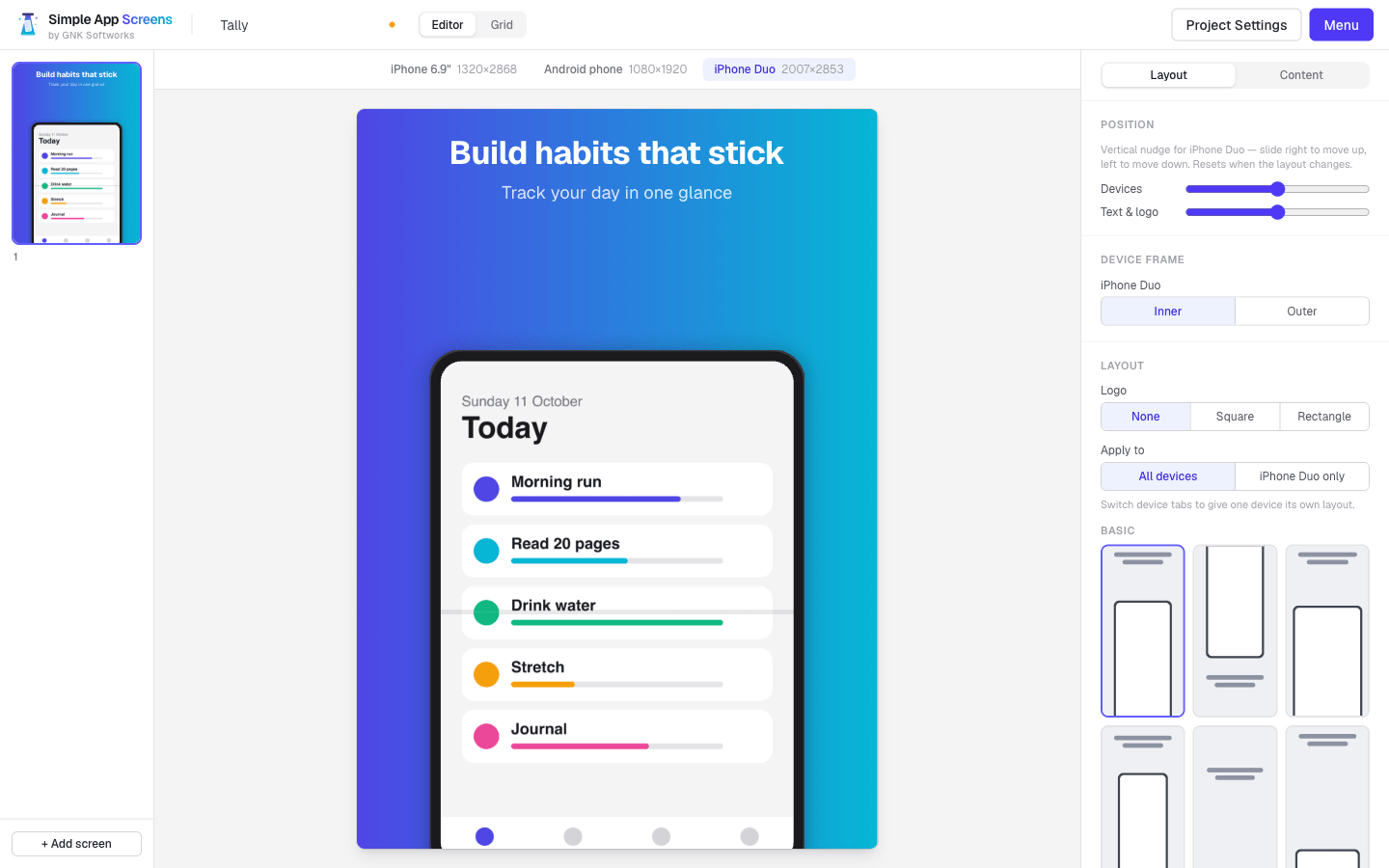
Inner: the open phone
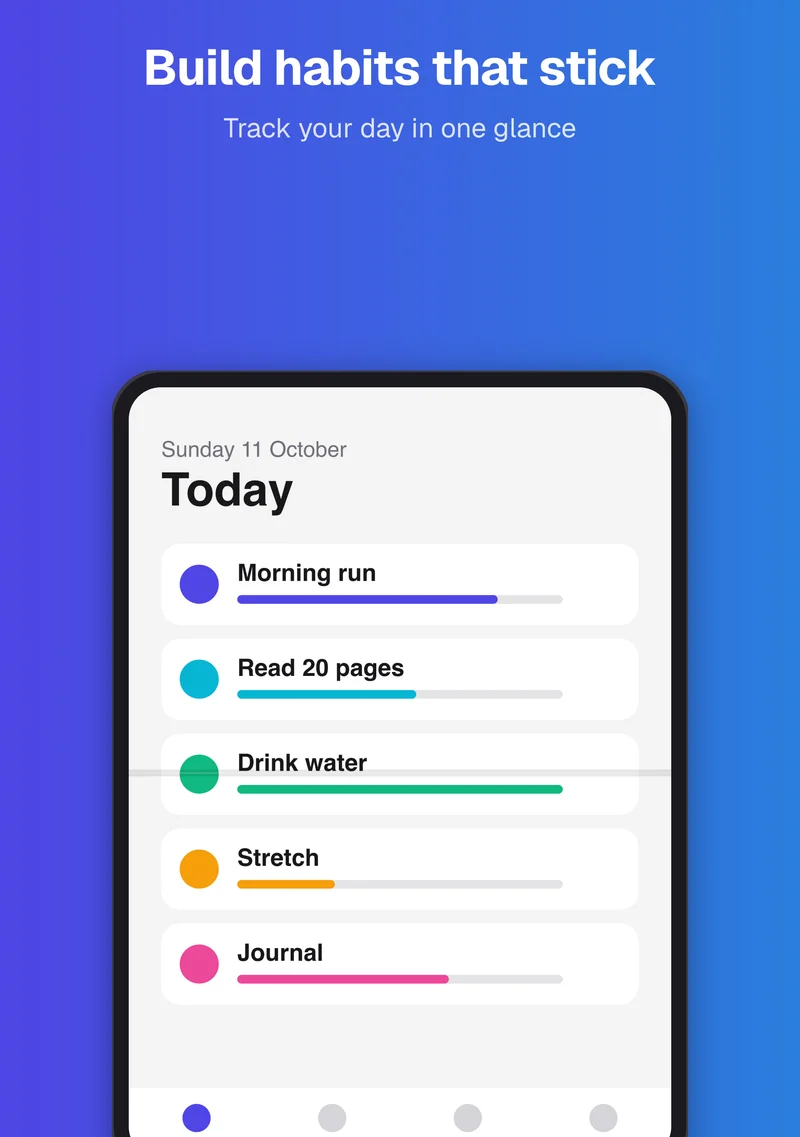
The Inner frame draws the unfolded device: a wide screen with even bezels, no camera cutout, and a faint crease across the middle. Use it when you want to show off a layout that takes advantage of the larger display.
Outer: the closed phone
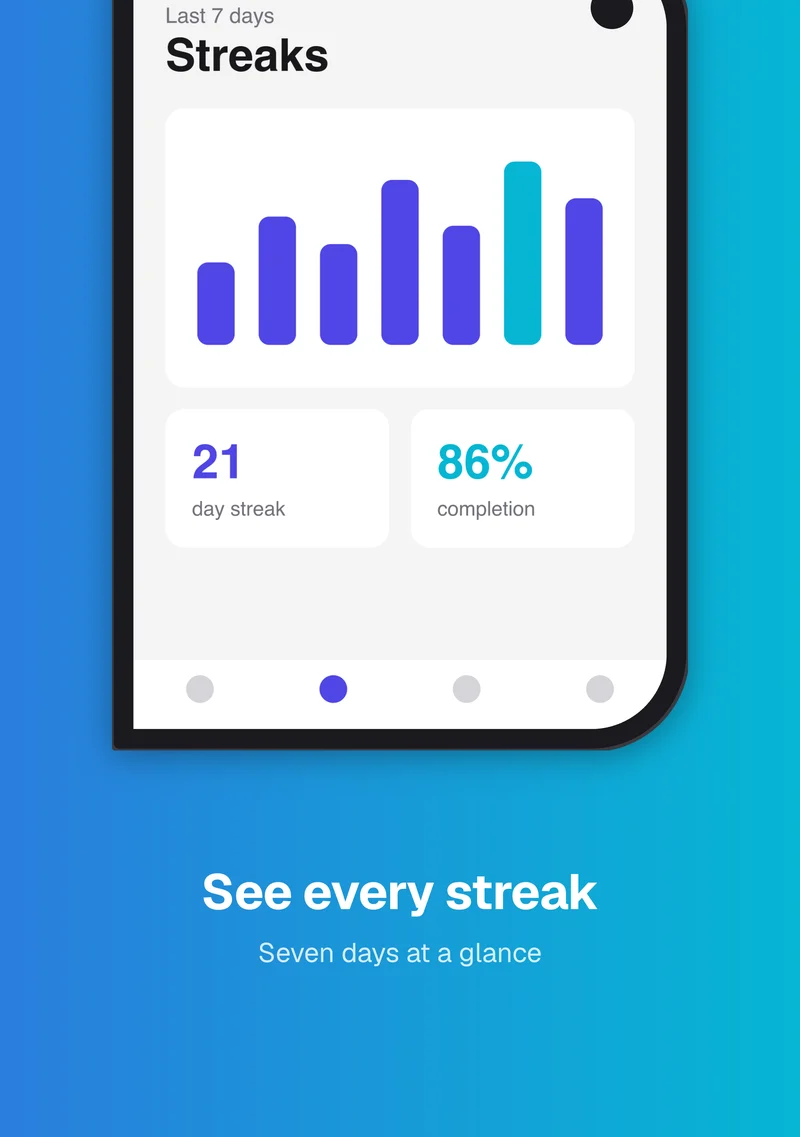
The Outer frame draws the folded device: square corners on the hinge side, rounded corners on the free edge, and a punch-hole camera in the upper right. Use it to show how your app looks when the phone is closed, which is how many people will use it most of the time.
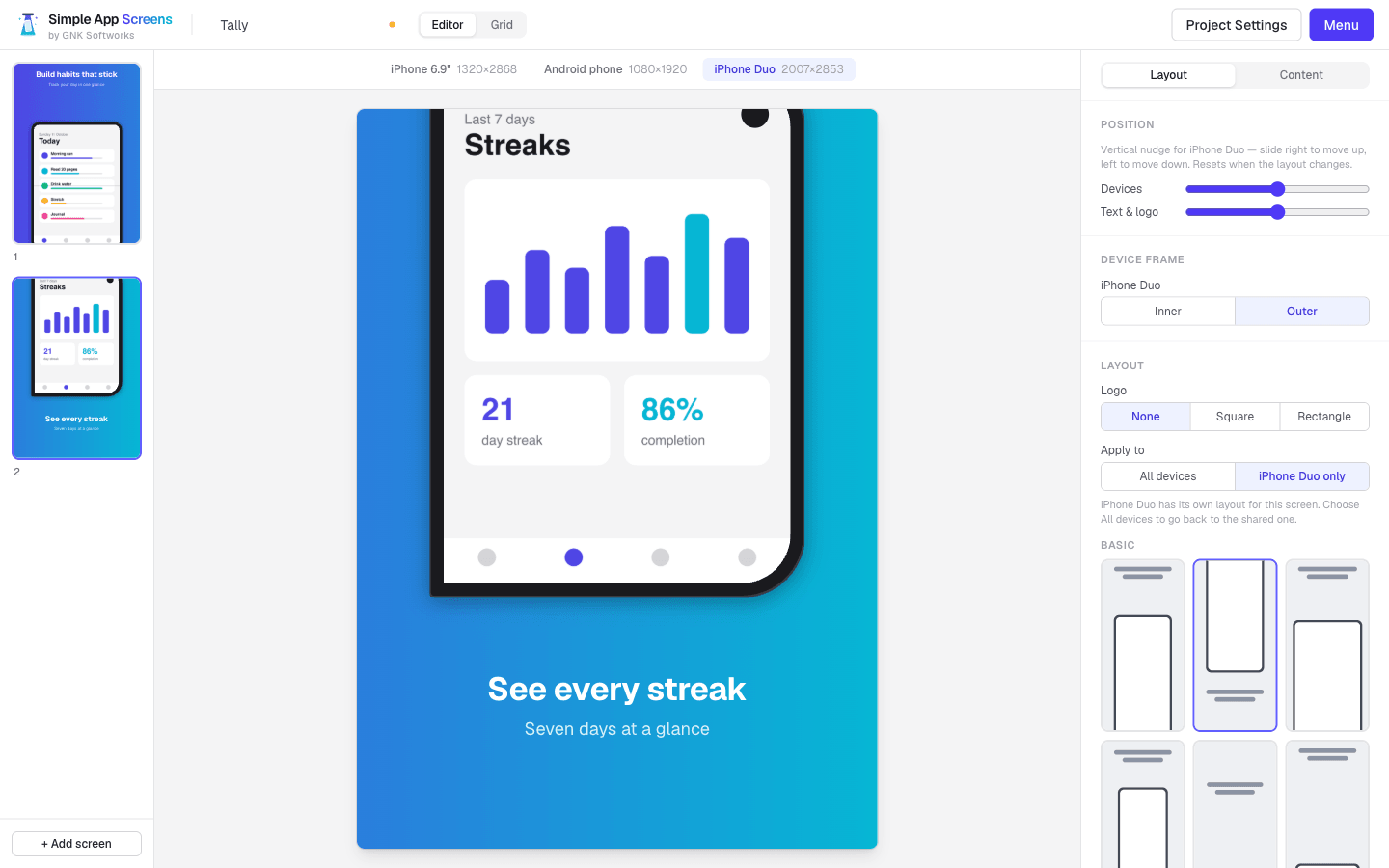
The frame is chosen per screen, so one set can mix both: open the phone for the screens where space matters and close it for the rest.
Step 4: give the Duo its own layout where it needs one
A layout that suits a tall iPhone will not always suit the Duo's wider canvas. In the Layout tab, switch Apply to from All devices to iPhone Duo only, then pick a layout. That screen now uses the new layout on the Duo and keeps the shared one everywhere else. Switch back to All devices to drop the override.
The two Position sliders are also per format, so you can nudge the device or the text up and down on the Duo without disturbing your other sizes.
Step 5: check the whole set
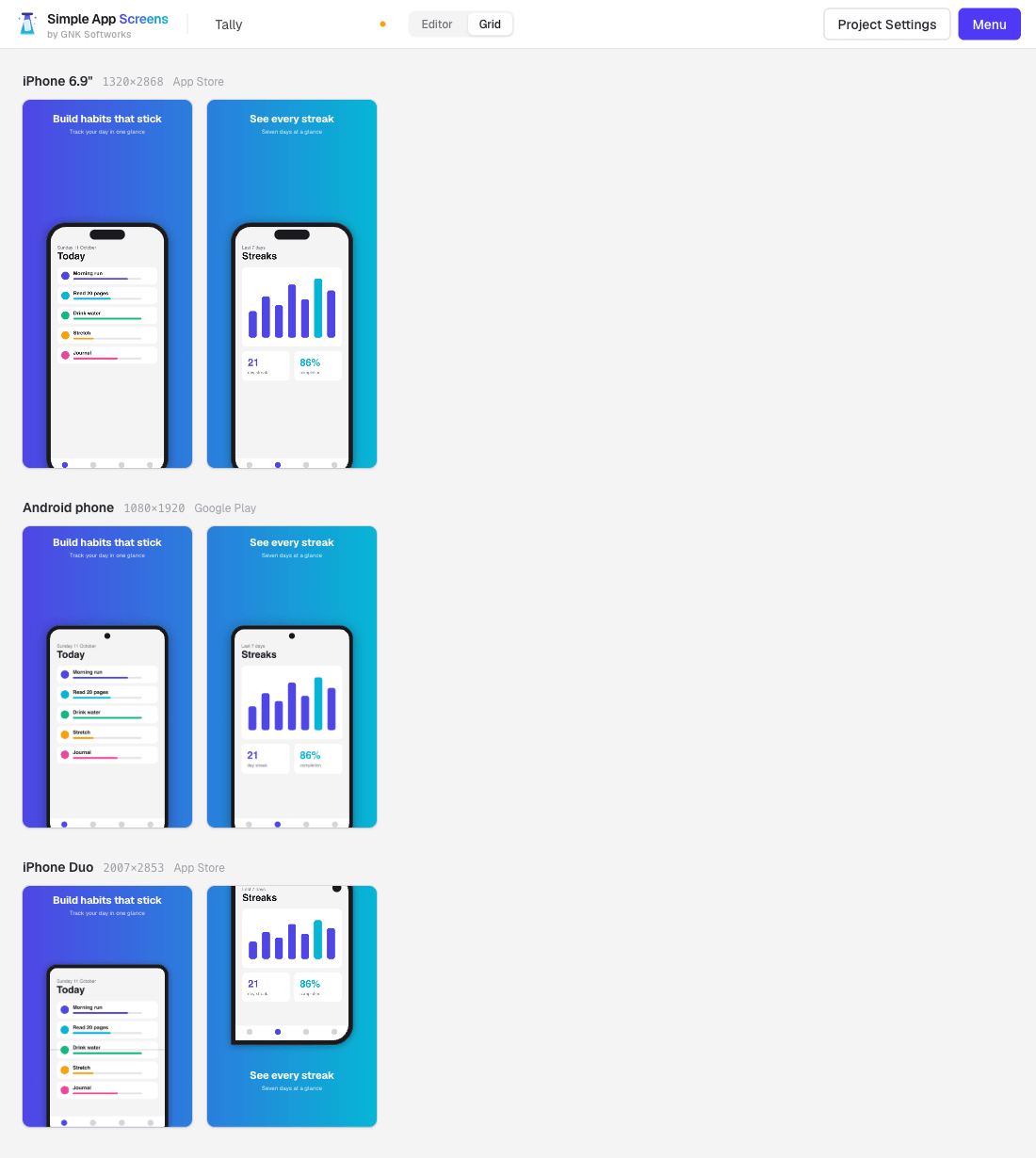
The Grid view lays out every screen against every enabled format. It is the quickest way to confirm that the Duo row tells the same story as your iPhone and Android rows.
Step 6: export
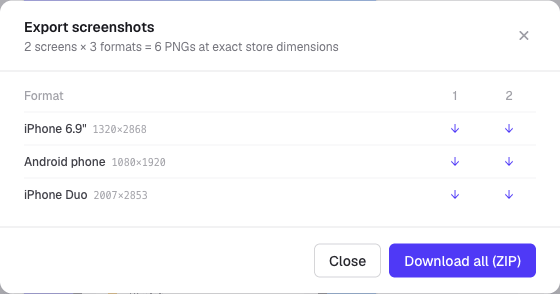
Open Menu → Export. You can download a single image with its arrow, or use Download all (ZIP) to get every format at once. The ZIP has one folder per format, and the Duo images land in iphone-duo/ as 2007 × 2853 PNGs, ready to upload to App Store Connect.
Here are the two finished Duo screenshots from the example project:
Quick checklist
- Enable the iPhone Duo format in Project Settings.
- Capture your app at 1878 × 2670 (inner) or 1398 × 2034 (outer).
- Pick the Inner or Outer frame for each screen.
- Override the layout for the Duo where the shared one does not fit.
- Review the Duo row in the Grid view.
- Export and upload the 2007 × 2853 PNGs.
Wondering whether you need to do this yet? See App Store Connect makes Duo screenshots mandatory for the dates.